Compress Images Without Losing Quality: JPG 100 vs 80 Explained
JPG quality 100 and 80 can differ in both size and detail. Learn why the scale is encoder-specific and how to compare settings on your own image.
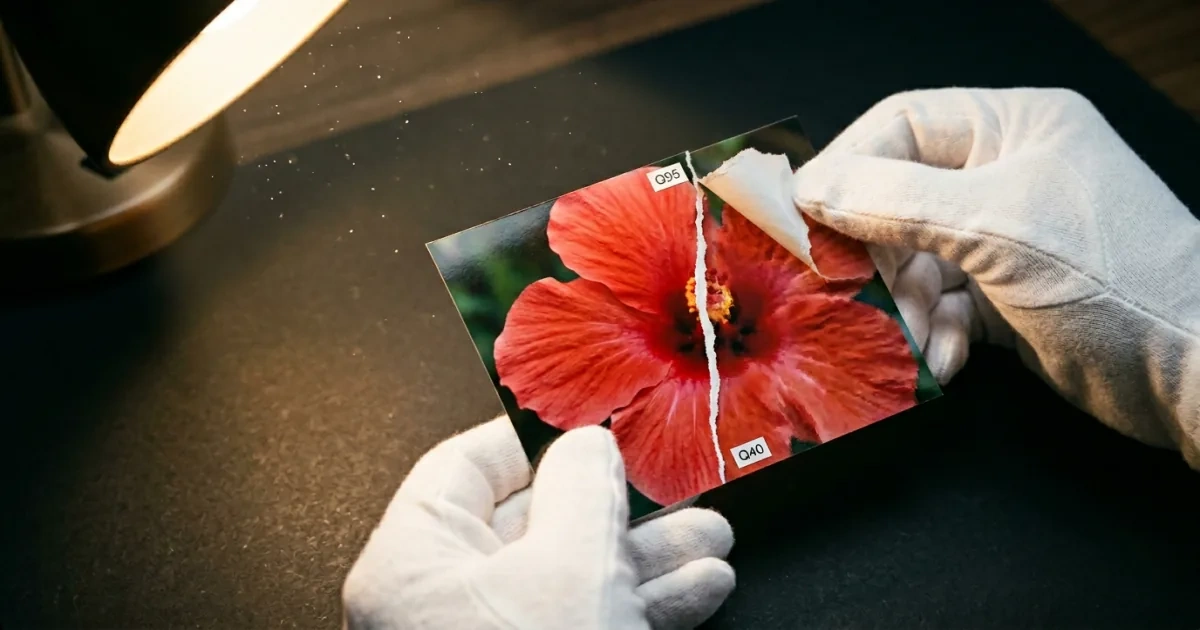
You drag a 4 MB JPG into a compressor. You see a “Quality” slider from 0 to 100. You drag it to 95 because you don’t want to lose anything.
The slider is not a percentage of your image. Quality 80 does not mean “throw away 20%.” On some photographs, the difference between Quality 80 and Quality 95 is hard to see at normal viewing while the file becomes substantially smaller; on other images, fine text, gradients, or texture reveal the change. The ratio is source- and encoder-dependent.
This is what the slider actually does, and where the real sweet spot lives.
”Quality 80” is not a percentage of anything
The JPEG quality scale is arbitrary. Different programs use different internal mappings. Photoshop’s Q12 and GIMP’s Q95 are not directly comparable; neither is Adobe Lightroom’s Q80 versus the JPEG library’s Q80.
What the slider really controls is the quantization table — how aggressively the encoder rounds off the high-frequency components of the image. JPEG splits an image into 8×8 pixel blocks, runs a discrete cosine transform on each one, and then divides the result by a quantization matrix. Higher quality means smaller divisors, which means more high-frequency detail survives.
Lowering the quality from 95 to 80 doesn’t remove detail uniformly. It mostly throws away high-frequency information your eye barely notices — subtle texture variation, fine noise, micro-gradients in skin tones.
The places JPEG starts to look bad are predictable: text edges, sharp logos, and pure color gradients (sky, skin, fog). Those are the regions where the eye does notice when the encoder cuts corners.
One benchmark example, not a universal sweet spot
The linked third-party example uses one 1233×1233 photo and libjpeg’s IJG quality scale. It is not a PicShift benchmark and cannot predict another source image or encoder. Use it only to understand that quality values are nonlinear, then test your own file:
| Quality range | How to use it |
|---|---|
| Q90–Q100 | Compare whether the larger output preserves detail you actually need. Q100 is still lossy in common JPEG encoders. |
| Q80–Q89 | A practical starting range for many web photos; inspect texture, faces, text, and gradients. |
| Q70–Q79 | May save more space, but artifacts can become easier to notice depending on content. |
| Below Q70 | Treat as an aggressive setting and inspect at the intended display size. |
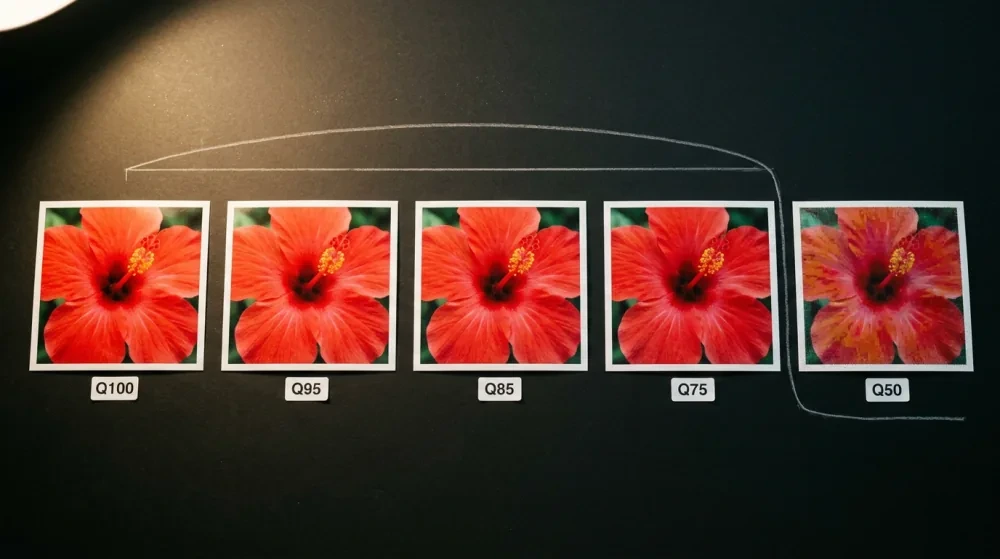
Two practical rules fall out of this:
-
Treat Q100 as an edge setting. The IJG/libjpeg FAQ explains why its Q100 setting disables quantization scaling and can increase size sharply. That is encoder-specific guidance, not a PicShift size ratio or a promise that two outputs will look identical.
-
There is no universal quality cliff. Text, sharp graphics, smooth gradients, and highly detailed photographs fail at different points. Lower the value in small steps and judge the intended display size.
A practical starting range for many web photographs is Q80 to Q90, but it is a recommendation to test, not a benchmark result or a promise of invisible loss.
Where the savings come from (and where they don’t)
JPEG compression is designed around the limitations of human vision. The encoder discards information your eyes are bad at seeing — high-frequency detail, subtle color shifts in saturated regions, fine noise that looks like grain.
This works extremely well on:
- Photographs with natural texture and noise — the encoder hides its work in the existing chaos
- Soft scenes — landscapes, portraits with skin tones, subdued light
It works poorly on:
- Text and logos — the eye is calibrated to see edges; even mild artifacts look ugly
- Sharp graphics with flat color regions — UI mockups, cartoon illustrations, charts
- Smooth gradients in a single hue — blue skies, fog, gradient backgrounds. Look closely and you’ll often see “banding” — discrete steps where the encoder ran out of budget for in-between colors.
For screenshots, charts, and logos, JPEG can introduce edge or gradient artifacts that PNG avoids. Compare formats first, then tune quality for the chosen output.
A quality cheat sheet by use case
| Use case | Recommended JPEG quality | Why |
|---|---|---|
| Print or photo book | Q92–Q95 | Print catches subtle artifacts that screens hide |
| E-commerce product photo | Q85–Q90 | Detail influences purchase; page weight still matters |
| Blog post cover or article image | Q80–Q85 | Web sweet spot; readers are reading text |
| Social media upload | Q75–Q80 | Platforms re-encode anyway; uploading at Q95 is wasted bandwidth |
| Image thumbnail | Q70–Q75 | Small displayed size hides artifacts |
| Email attachment | Q80–Q85 | Balances quality with mailbox limits |
| Photography portfolio | Q90–Q95 | Pixel-peepers are your audience |
PicShift uses Q85 as an initial comparison value for JPG and WebP. It is an implementation default, not a benchmark result; adjust it after inspecting the actual output.
When you should not compress
Compressing an already-compressed JPG is a tax. JPEG is generational: every save introduces small new artifacts that the next save can’t undo. If you save a JPG at Q90, then re-open and save at Q90 again, the second one is not the same as the first — it has an additional rounding pass on top of an already-rounded image.
Generation loss accumulates with repeated lossy saves. How quickly it becomes visible depends on the source, encoder, settings, and edits between saves.
Three rules that follow:
- Keep your master file as PNG, TIFF, or RAW. Export to JPG only at publish time.
- If you must edit a JPG, save the working file as PNG and re-export.
- Avoid round-tripping JPG → PNG → JPG to “preserve” quality. The PNG step preserves what the first JPG already discarded; it cannot recover it.
For the underlying mechanics, why output size can increase explains why re-encoding can make a file bigger. PicShift’s image-compressor mode, and same-format conversions, keep the original when the candidate is not smaller; ordinary format-conversion routes still return the requested format even when it is larger.
Lossless options that actually exist
“Lossless compression” is not a marketing word. There are real techniques that shrink files without touching pixels:
- MozJPEG re-encodes existing JPGs with quantization and entropy-coding optimizations. libjpeg-turbo’s published comparison reports results for its benchmark, not a guaranteed saving for every image. Trellis quantization is a lossy refinement, so compare the decoded output when fidelity matters.
- OxiPNG / Zopflipng can re-encode PNG files with different filtering and zlib strategies while preserving decoded pixels. The size change depends on the source and prior optimization.
- WebP lossless preserved decoded pixels and reduced average size in Google’s published PNG corpus study. The reported corpus result is not a guarantee for another image or encoder.
- AVIF supports a lossless mode in the format, but PicShift’s quality slider should not be treated as a lossless AVIF control; compare decoded output for the workflow you use.
These are not magic; they are different encoding strategies. PicShift’s image compressor defaults to quality 85. For PNG inputs that means lossy palette quantization may reduce colors before OxiPNG optimization. Set PNG quality to 95–100 when preserving the decoded pixels matters.
How to actually find the right quality for your image
Trust the slider only after you’ve checked. The “right” quality depends on the content:
- Pick a representative image — ideally one with text, gradients, and detailed regions
- Export it at Q95, Q85, Q75
- View all three at 100% zoom on your actual display
- Find the lowest setting where you can’t see a difference
Whatever number passes your comparison is the useful one. Many workflows start in the Q80–Q90 range, but your image may require a different value.
For batch work, test representative images first, then apply one setting to sources with similar content. Review outliers instead of assuming one quality value fits every image.
Compress in your browser
PicShift’s image compressor runs locally — source image content is not uploaded for conversion. It uses MozJPEG, OxiPNG, and WebP / AVIF encoders, starts at Q85, and shows the result before download. For PNG, Q85 may reduce the palette; use Q95–100 for decoded-pixel preservation.
For format-specific conversion with the same compression machinery:
- Convert PNG to JPG — drops file size for photographs that don’t need transparency
- Convert JPG to WebP — compare actual size and visual quality; no fixed reduction applies to every source
The setting that actually matters
Do not max out the slider without comparing the result. Q80 to Q85 is a reasonable starting range for many web photos; move higher or lower based on the actual image, output size, and intended use.
The savings come from JPEG being honest about what your eye can’t see. The mistake is using JPEG for things your eye can see — text, logos, sharp gradients. For those, use PNG or WebP lossless instead.
If you want the longer technical version of how compression interacts with file size, image quality vs file size covers what really changes between quality 70 and 95 on the encoder side.