What Is WebP? Why Your JPG Saves as .webp and How to Convert
Why Chrome saves some images as .webp but not others — what WebP actually is, where it works in 2026, and how to convert it back to JPG when you need to.
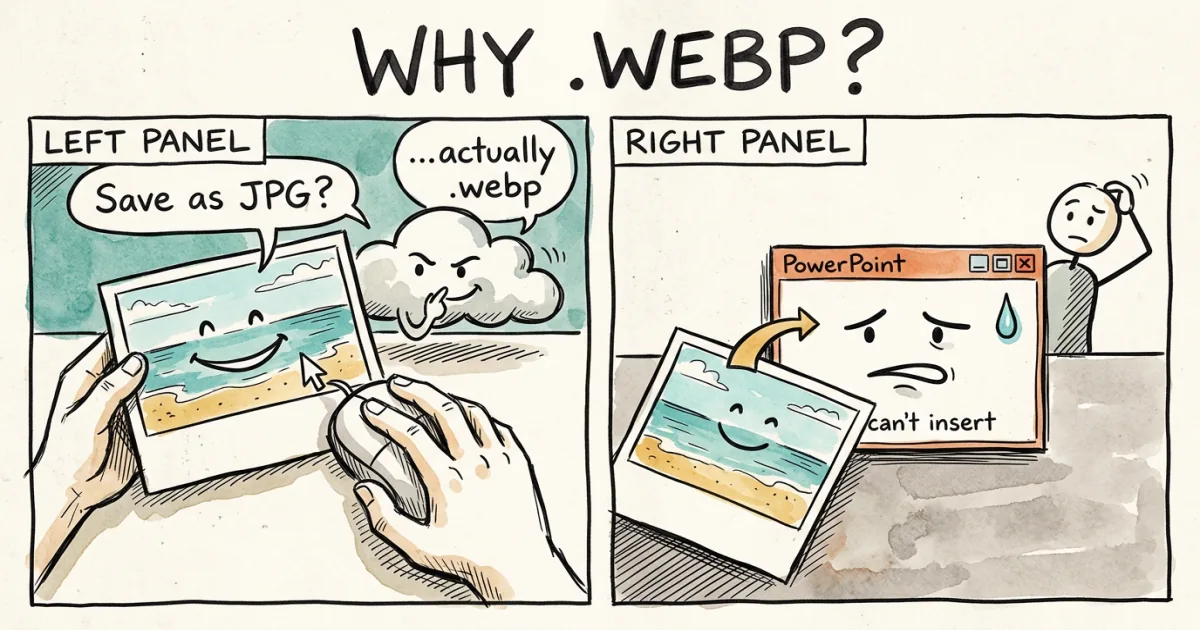
You’re on a big site — a marketplace, a Pinterest-style board, a media site. You right-click an image. The URL ends in .jpg. You hit “Save image as…” and Chrome offers something.webp as the only filename. You drop the file into PowerPoint. Nothing. You drag it into an old Photoshop. Error. You email it to a colleague on Outlook desktop. They get a broken attachment.
Then you try the exact same right-click on a small blog or a static site, and it saves as a normal .jpg. No dialog tricks, no surprises.
Both are real. Whether you get a .webp depends on what the site put between you and the original file. Here is what WebP actually is, when the .webp switcheroo happens, and how to convert it back when it does.
When (and when not) does Chrome save a JPG as .webp
This is the part most explanations get wrong by leaving out the “when.”
The right-click “Save image as…” gives you a .webp only when the server hands the browser WebP bytes. The browser is not converting anything — it’s saving what it received.
So the answer comes down to who is in front of the image:
- Static sites and small blogs that serve an original JPEG unchanged (for example, a plain static host or Nginx setup without image negotiation) — the response remains
image/jpeg, so the browser offers a.jpgsave. Hosting alone does not guarantee this; verify the response header. - Sites behind an image CDN with WebP delivery enabled (Cloudflare Polish with the WebP toggle on, Akamai Image Manager, Imgix, ImageKit, BunnyCDN Optimizer, Vercel Image Optimization, Next.js
<Image>component, Shopify CDN, Pinterest, Amazon product images, many e-commerce platforms) — the CDN inspects the browser’sAcceptheader (which listsimage/webpfor Chrome), sometimes also theUser-Agent, and rewrites the response toContent-Type: image/webp. Same URL, different bytes. Your browser saves what it got —.webp. (Note: Cloudflare Polish is opt-in. Per Cloudflare’s docs, the WebP option must be enabled separately by the site owner and only kicks in when the WebP version is significantly smaller than the original.)
The file extension in the URL was never the source of truth. HTTP doesn’t care about extensions — it cares about the Content-Type header. If the response says image/webp, that’s what got transmitted, regardless of whether the URL ends in .jpg, .png, or .html.
It is not Chrome being annoying — it is the CDN being clever. From the site’s perspective, this is a free bandwidth reduction with no work on their end. Cloudflare’s Polish documentation reports roughly 26% smaller for PNG inputs and 17% smaller for JPEG inputs once WebP is enabled. From your perspective, you got a .webp you didn’t ask for.
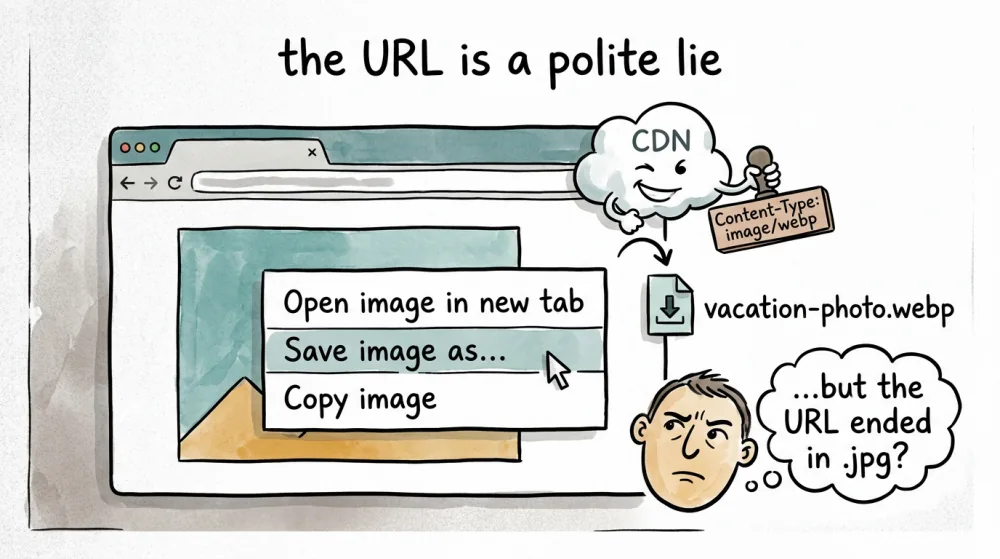
A quick way to know which case you’re in before you save: right-click the image, choose Inspect (or Inspect Element), open the Network tab, refresh the page, click the image’s request, and look at Response Headers → Content-Type. If it says image/webp, the dialog will offer .webp. If it says image/jpeg, you’ll get a normal .jpg. No guessing.
What WebP actually is
WebP is an image format developed by Google. It is based on the VP8 video codec (the lossy mode) and supports:
- Lossy compression (the common case — competes with JPEG)
- Lossless compression (competes with PNG)
- Animation (competes with animated GIF)
- Alpha transparency (competes with PNG)
In one format. JPEG has no alpha transparency or animation. PNG can animate through APNG, while a baseline PNG image is still. GIF can store photographs but is constrained by its indexed-color palette. WebP combines photo-oriented compression, alpha, and animation in one format.
Published comparisons are corpus- and settings-specific, not guaranteed PicShift results:
- Google’s WebP study reported smaller files than JPEG on its test corpus at a matched quality metric; a different image or encoder can produce a different result
- Google’s lossless WebP study reports an average reduction for its PNG corpus while preserving decoded pixels; it is not a promise for every PNG
- Animation results vary with frame content, duration, encoder, and settings, so compare the generated files
That is why CDNs like it. That is why Google pushes it. That is why you keep ending up with .webp files.
Where WebP works in 2026
WebP support is broad in current browser families, but embedded webviews and managed devices can lag. Check the live Can I Use table for the audience you serve:
| Browser | Native WebP support |
|---|---|
| Chrome | Since 32 (January 2014) |
| Edge | Since 18 (October 2018) — the original Edge had no WebP |
| Firefox | Since 65 (January 2019) |
| Opera | Since 19 (2014) |
| Safari (iOS) | iOS 14+ (partial); full support since iOS 16 |
| Safari (macOS) | Safari 14 (September 2020) — partial; full support since Safari 16 |
Outside the browser, support is application- and version-specific. Test the exact office suite, editor, email path, CMS, or print provider that will receive the file. When that environment is unknown, keep a JPG fallback for photos or a PNG fallback for transparency and editing.
When to convert WebP back to JPG or PNG
You usually want to convert WebP out in three situations:
The receiver’s software doesn’t support it. A coworker on Outlook desktop, a relative running Office 2019, a print shop, a photo book service, an older content management system. Any of these is a reason to convert WebP → JPG before you send.
You need to edit the image and your editor is older. If Photoshop is older than 23.2, or you use an editor version without WebP support, convert to PNG or JPG first. In PicShift, PNG quality 95–100 preserves decoded pixels; lower values may quantize the palette. JPG always re-encodes lossily.
You’re printing. Many print services publish a limited accepted-format list. Follow the provider’s current specification and convert only if WebP is not accepted.
The conversion in PicShift takes seconds and runs locally:
- Convert WebP to JPG — best for sharing, email, print, older software
- Convert WebP to PNG — for editing and transparency; use quality 95–100 when decoded-pixel fidelity matters
One thing to be honest about: if the WebP is already lossy, converting it to JPG will not restore discarded detail. PicShift decodes the WebP and then performs a new lossy JPG encode, so pixel values can change again; compare the result when fidelity matters.
When to convert TO WebP
The reverse direction matters when you’re publishing.
Web pages. Reducing image transfer size can improve loading performance, including Largest Contentful Paint when the image is the LCP element. WebP may help, but measure the actual output and page rather than assuming a fixed saving.
CMS uploads with size limits. A WebP candidate may help if it is smaller for the source and the CMS accepts it. Compare the output and confirm the platform’s current limits.
Animated graphics. Animated WebP may be smaller than GIF, but results depend on the frames and encoder settings. Compare motion, transparency, quality, and final size.
If you’re starting from scratch:
- Convert JPG to WebP — compare actual size and visual quality
- Convert PNG to WebP — preserves transparency support; PicShift’s current quality slider uses lossy WebP encoding, so inspect the output rather than treating it as a lossless-mode control
What about AVIF?
AVIF can be smaller than WebP for some images and settings, but either format can win on a particular source. Current browser support should be checked for the audience you target (caniuse compatibility table); use WebP or JPG fallbacks where needed.
WebP and AVIF can each win for a particular image and encoder setting. Some image CDNs negotiate formats from the request’s Accept header, but their supported formats and fallback order are product settings that can change. Check the CDN configuration and measure generated variants rather than assuming AVIF is always smaller or WebP is always faster.
If you want the longer take, see What is AVIF for when AVIF is worth the extra encoding cost.
How to get a JPG out when the site is serving WebP
Three options, ordered by reliability:
-
Save the WebP, then convert it. Open the file in PicShift’s WebP to JPG converter and you have a JPG you can use in workflows that reject WebP. This is a decode-and-re-encode operation, not a container swap, so inspect the output before print or archival use. The method does not depend on the original site’s CDN cooperating.
-
Use a “Save Image As Type” extension. Chrome Web Store has several. Once installed, you get an extra right-click menu item that exports JPG or PNG instead of WebP. Same caveat as option 1: you’re getting a converted version, not the original JPG that lives on the site’s origin server.
-
Right-click and drag (macOS Chrome). Hold right-click on the image, drag it outside the browser window, then release — the resulting Save dialog will sometimes show the URL extension (
.jpg) instead of the served format (.webp). Inconsistent across browsers and OS versions; worth trying once.
Three things people sometimes suggest that don’t reliably work in 2026: appending ? to the URL (modern CDNs normalize or ignore the query), spoofing your User-Agent to something old (the site often breaks in other ways), and “Open image in new tab, then save” (the CDN serves WebP to that tab too).
Where the browser lets you save the delivered WebP bytes, option 1 is usually the most direct because it does not depend on finding the origin asset.
The short version
WebP supports lossy and lossless compression, animation, and transparency. Published test corpora often show size advantages over JPG or PNG, but the result depends on the source, mode, encoder, and comparison method. Check the actual output and the target software rather than assuming a fixed saving.
The friction is real but localized: corporate Outlook, older software, print labs, web-only Office, and a handful of third-party tools. When your image needs to land in one of those, converting WebP back to JPG or PNG is the right answer.
If you’re trying to decide between JPG, PNG, and WebP for your own publishing pipeline, our PNG vs JPG guide covers when each format actually pays off, and our format compatibility doc maps which formats open where without friction.