HEIC on Windows: Why iPhone Photos Won't Open and 3 Fixes
Some iPhone HEIC photos need additional HEIF/HEVC support on Windows. Compare three options: local conversion, current Microsoft extensions, or iPhone transfer settings.
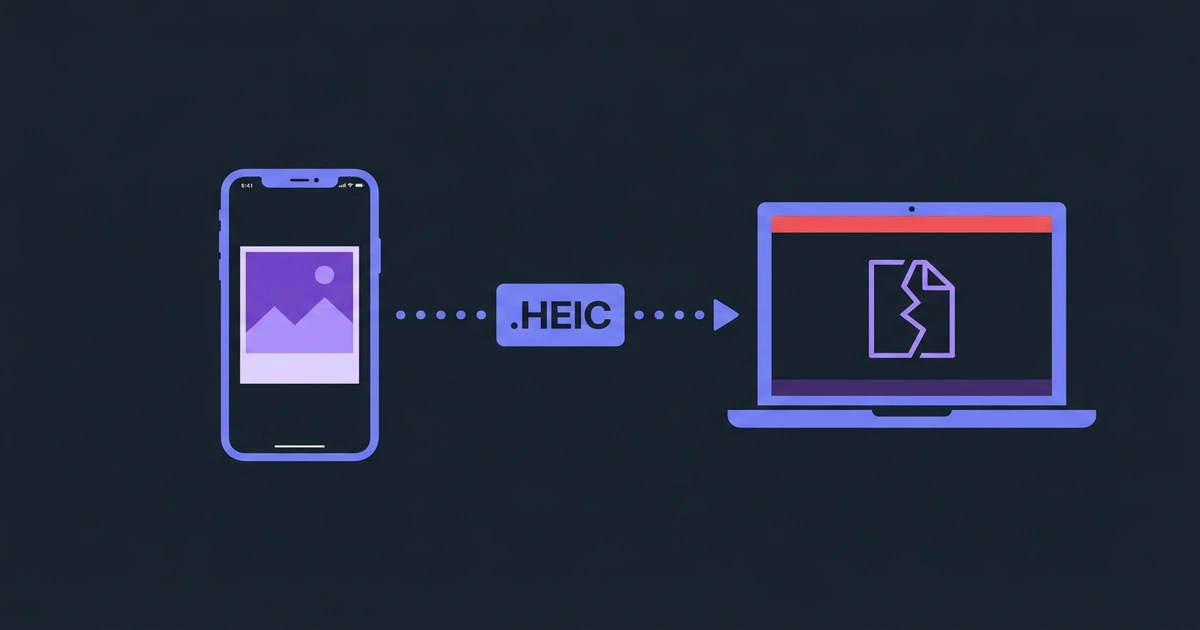
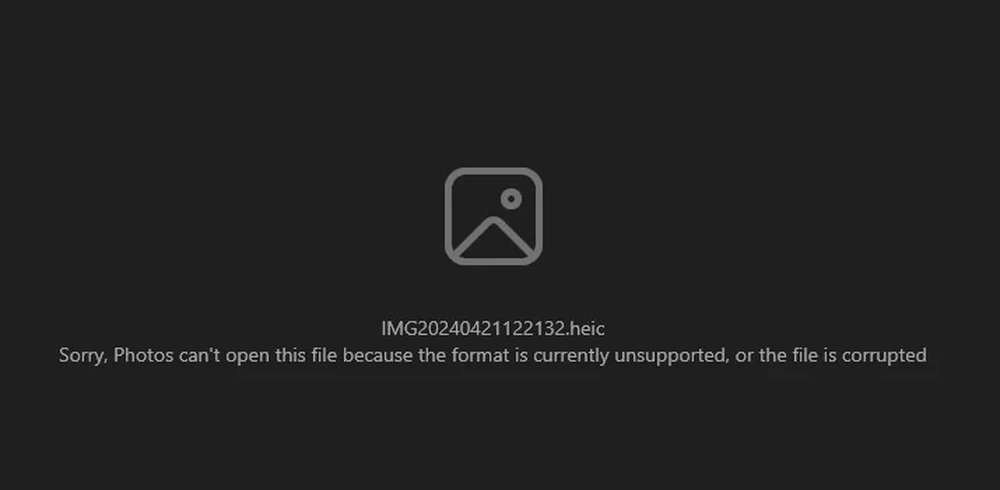
You take a photo on your iPhone, send it to a Windows PC, and get this: “This file format is not supported.” Or worse — the file opens in the Windows Photos app as a blank screen with a prompt to buy a codec extension from the Microsoft Store.
The file may be valid even when the current Windows installation or receiving app lacks the required HEIF/HEVC support.
What is HEIC and why does your iPhone use it
HEIC commonly refers to HEIF images that use HEVC compression. Apple introduced HEIF/HEVC capture support with iOS 11 and documents the compatible devices and settings in its HEIF and HEVC support guide.
Apple describes HEIF/HEVC as more storage-efficient than JPEG/H.264 at comparable visual quality in its workflow. Actual size and visual quality still depend on the image, codec, and settings; there is no universal “half the size” result.
Many iPhone HEIC photos use the HEVC (H.265) codec. Compatibility depends on whether the operating system and target application can decode that combination.
HEIC vs HEIF — what is the difference
People use these terms interchangeably, but they are not the same thing:
- HEIF (High Efficiency Image Format) is the standard. It is defined by the MPEG group and describes how to store images using modern codecs.
- HEIC is Apple’s specific implementation of HEIF that uses the HEVC codec.
Think of it like this: HEIF is the container specification, HEIC is what Apple puts inside it. When your iPhone saves a .heic file, it is technically a HEIF container with HEVC-compressed image data.
In practice, the terms are interchangeable for most people. If someone says “convert HEIF to JPG” or “convert HEIC to JPG,” they mean the same thing.
There is also AVIF — another format that uses the HEIF container but with the AV1 codec instead of HEVC. Google and Android are pushing AVIF as the next-generation image format. Same container idea, different compression engine.
Why Windows cannot open HEIC files out of the box
Some Windows configurations show an extension prompt for HEIF or HEVC media. Microsoft’s Photos troubleshooting guidance documents the extension path and alternative transfer methods.
What you actually need to install:
- HEIF Image Extensions — handles the HEIF container on supported Windows configurations.
- HEVC Video Extensions — handles HEVC-coded media; availability and price can vary, so check the current Microsoft Store listing.
Some PCs include manufacturer-provided HEVC support. Availability depends on the device, region, Windows installation, and receiving application, so verify the exact workflow rather than assuming one extension fixes every HEIC file.
A practical fix: convert to JPG
If a specific workflow rejects HEIC, converting a copy to JPG is a practical compatibility step.
JPG is broadly supported across operating systems, browsers, email clients, and editing tools. It is a practical interoperability target when a specific workflow rejects HEIC.
The conversion trade-off:
| HEIC | JPG | |
|---|---|---|
| File size | Often efficient; source-dependent | Source- and quality-dependent |
| Quality | Source- and codec-dependent | Quality-setting-dependent |
| Compatibility | Depends on OS, codec, and app | Broad; verify the receiving app |
| Transparency | Supported | Not supported |
| Editing | App-dependent | Broad app support |
For many email, upload, sharing, and print workflows, JPG is a practical target. The output can be larger or smaller depending on the source and quality setting, so inspect the generated file.
Convert HEIC to JPG in your browser →
When JPG is not the best target
JPG works for sharing, but it is not always the ideal conversion:
Choose PNG when:
- You need transparency or a PNG editing workflow; in PicShift use quality 95–100 when decoded-pixel fidelity matters
- The image has transparency (logos, design assets)
- You plan to edit and re-save the file multiple times
Choose WebP when:
- The image is going on a website
- You want to compare a modern web output against JPG
- The browsers and applications in your target workflow support WebP
Choose AVIF when:
- You want to compare another modern web format for transfer size and quality
- Your platform supports AVIF
- JPG fallback is available for older browsers
How to stop your iPhone from shooting HEIC
If you would rather capture in a more broadly compatible format, Apple documents this setting in its HEIF/HEVC support guide:
- Open Settings → Camera → Formats
- Select Most Compatible instead of High Efficiency
This switches new photos to JPEG. Storage use depends on the scene and encoder, and receiving applications can still impose their own constraints.
Most people are better off keeping HEIC and converting only the photos they need to share.
Batch conversion: when you have hundreds of HEIC files
Transferring an entire photo library from iPhone to Windows? You probably have hundreds or thousands of HEIC files to deal with.
One-at-a-time conversion is not practical. You need batch processing:
- Drag up to 200 files at once
- Source image content is converted in your browser without an account or conversion upload
- Download as a ZIP
Batch convert HEIC/HEIF photos →
The honest take
HEIC can be storage-efficient, while JPG is often easier to exchange with a workflow that lacks HEIF/HEVC support. Neither format wins every size, quality, or compatibility comparison.
When a receiving app rejects HEIC, convert a copy to JPG and inspect the output at the chosen quality. Keep the original HEIC when you may need its source detail or metadata later.
For a side-by-side view of where HEIC, HEIF, WebP, AVIF, PNG and JPG actually open without friction — and where they still break — see our format compatibility guide. And if you are wondering why a converted JPG sometimes ends up bigger than the HEIC original, we explain that in why output size can increase.